![impala long logo dark.png]](https://impala.digital/hs-fs/hubfs/impala%20long%20logo%20dark.png?height=40&name=impala%20long%20logo%20dark.png)
The Portfolio Analysis tool in Impala helps grantmaking teams understand the health, trends, and risk profiles of their grantee portfolios in a single, intuitive view. Instead of gathering spreadsheets and manually comparing grantees, Portfolio Analysis lets you monitor signals of growth, decline, and risk across all grantees — and drill into sub-sets of your portfolio based on themes that matter most to you.
What You Can Do with Portfolio Analysis
With Portfolio Analysis, you can:
-
Get a high-level view of grantee performance: See how each organization is trending across key indicators such as financials, funding history, staffing changes, and IRS eligibility.
-
Drill down on individual grantee financials: Compare financial metrics such as revenue sources, funding trajectory, or staffing changes across grantees in a single view.
-
Group grantees into sub-portfolios: Organize your grantees into meaningful buckets (e.g., by program area, region, or strategy) and analyze each group.
-
Monitor changes over time: Track whether grantees are growing, contracting, or shifting in key areas year over year.
How to Access Portfolio Analysis
-
Sign in to your Impala account.
You must have a premium subscription that includes the Portfolio Analysis module (typically part of Impala for Foundations solution). -
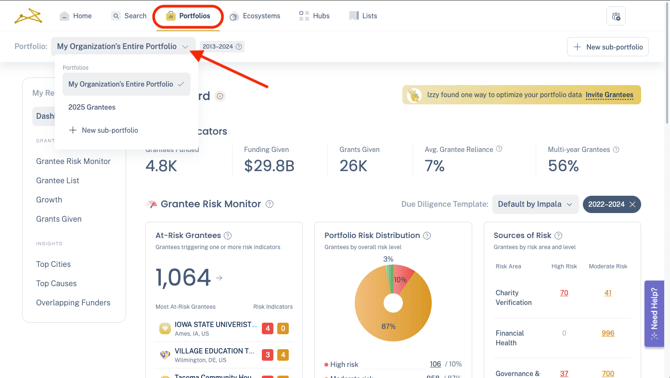
Go to the main navigation bar and select Portfolio Analysis.
-
Choose the portfolio you want to view.
By default, you’ll see your organization’s primary portfolio of grantees. You can also select any sub-portfolio you’ve defined.
The data and insights you see within the portfolio will update according to which portfolio is selected so make sure you're looking at the correct view!
To create a new sub-portfolio, see instructions here.
Navigating the Portfolio Analysis Interface
Once inside Portfolio Analysis, you’ll encounter several key panels and elements:
1. Dashboard
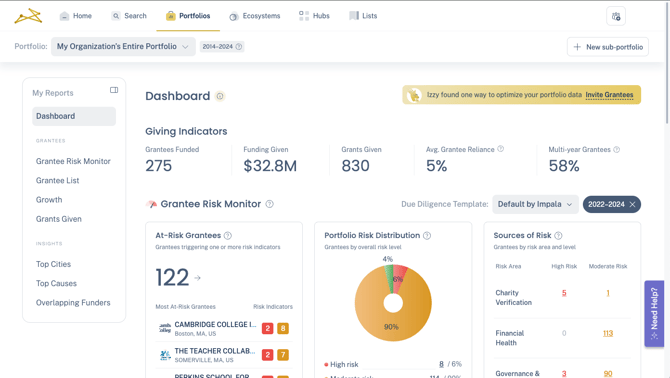
This section shows a snapshot of overall portfolio information and health, including basic statistics like number of grantees supported, all the way to trends in operating budgets and cash reserves.
The Dashboard also includes the portfolio-level view of the Grantee Risk Monitor, which surfaces risk indicators across your portfolio. For more information on this tool, see our article here.
2. Grantees
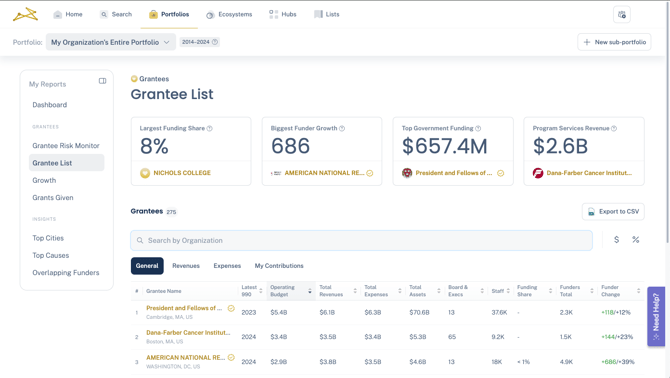
This section includes tools to drill down into more specific data at the individual grantee level. With the Grantee List and Growth tabs, you can view all nonprofits within your portfolio and their financial data in a consolidated table view.
The Grants Given section consolidates all grants given by your organization to grantees in your portfolio, with search and filter options to hone in on a specific grants info.
Finally, the Grantee Risk Monitor shows the Risk Indicators for each grantee in your portfolio so you can prioritize who needs a deeper look. For more information on this tool, see our article here.
3. Insights
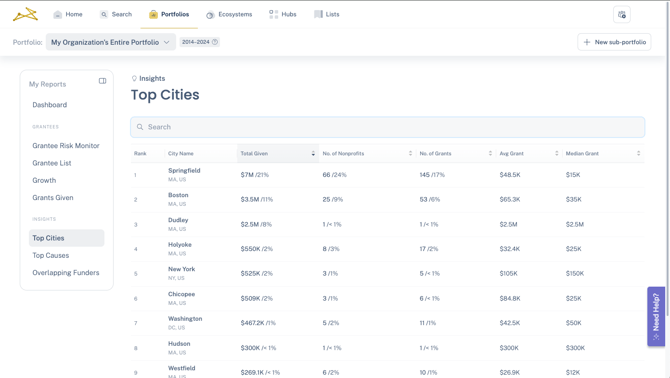
Your portfolio insights provide details on the Top Cities and Top Causes (according to Impala's IRS-based cause areas) that have received support from your organization.
You can also view Overlapping Funders, which our other foundations that have given to the same nonprofits in your portfolio within the same year.
Working with Sub-Portfolios
Sub-portfolios help you break a large grantee pool into focused groups. For example:
-
Grantees in a specific program area (e.g., Education or Health) or geography
-
Future grantees or applicants pending review
-
Emerging partners vs. long-term partners
The information provided in the portfolio areas, including the Grantee Risk Monitor, will reflect the portfolio view that you've selected.
To have a new sub-portfolio added to your account, see the instructions here, or reach out to your customer success manager, or our general support email: support@impala.digital.
To expedite the sub-portfolio creation process, please have ready:
-
The name and description of the sub-portfolio (ie. 2025 Arts Grantees)
-
The list of nonprofits to include in the sub-portfolio. EINs are preferable, but names and addresses can work as well.
- Note: if you support fiscally sponsored organizations, often their recorded EINs are those of their sponsors. Do not include these EINs if you do not wish to see the financials and details of the sponsoring organization.
Tips for Using Portfolio Analysis Effectively
-
Review your risk flags regularly. The Grantee Risk Monitor helps you catch issues early; build a cadence (e.g., quarterly) to revisit these indicators.
-
Use sub-portfolios to align with strategy. Mapping portfolios to internal structures enables clearer storytelling and sharper analysis in board or team meetings.