![impala long logo dark.png]](https://impala.digital/hs-fs/hubfs/impala%20long%20logo%20dark.png?height=40&name=impala%20long%20logo%20dark.png)
Step 1
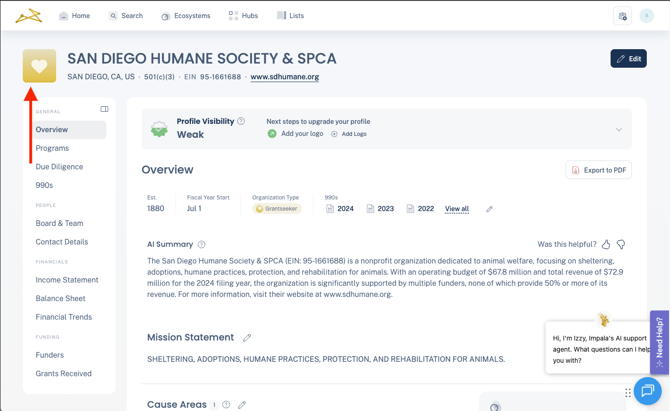
On your organization's profile, click into the square box in the upper left corner near your org name.
You can update your logo whether or not we already have one for you.
Step 2
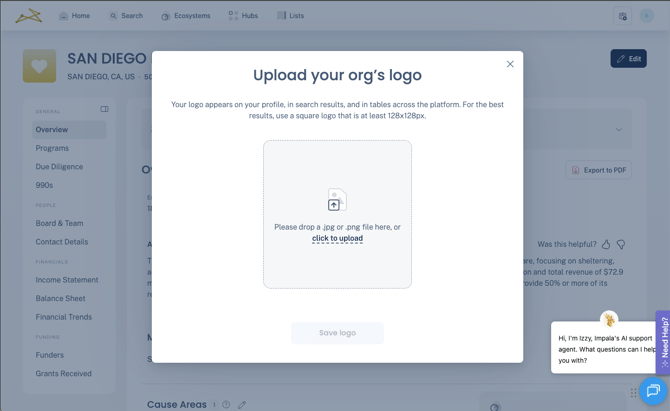
Drag or click to upload a .jpg or .png file from your computer. For best results, we recommend a square logo that is at least 128x128px.
If you're having issues with the size or format of your image, reach out to support@impala.digital for help.
Step 3
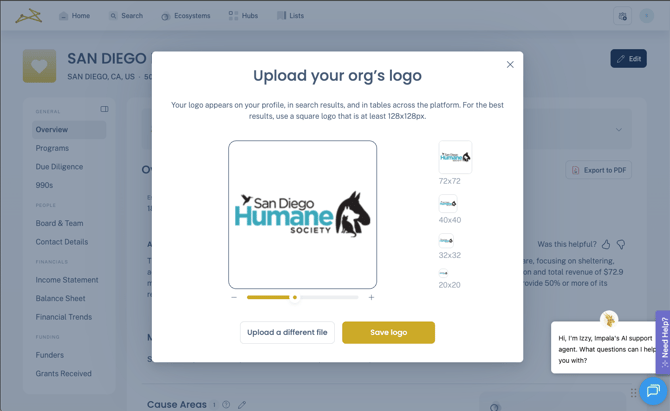
Drag the image and use the slider to adjust the position of your logo within the box. You can see previews of how your logo will look on the platform in the boxes on the right.
Once you're satisfied, click Save logo.
Step 4
Your logo is now live on Impala!