![impala long logo dark.png]](https://impala.digital/hs-fs/hubfs/impala%20long%20logo%20dark.png?height=40&name=impala%20long%20logo%20dark.png)
Premium feature: The Grantee Risk Monitor is available exclusively to subscribers of both Impala’s Due Diligence and Portfolio Analysis applications.
Overview
The Grantee Risk Monitor (GRM) is a portfolio-level tool that brings Impala’s Due Diligence intelligence directly into your Portfolio Analysis workflow. Rather than reviewing organizations one by one, the GRM lets you assess risk across an entire grantee portfolio at a glance: surfacing which organizations need closer attention, how risk is distributed across the portfolio, and where the most significant concerns are concentrated.
The GRM draws on the same Due Diligence templates and risk indicators used in individual organization reports, applying them consistently across all organizations in a selected sub-portfolio. This makes it easy to prioritize review efforts and identify patterns across your grantmaking.
While the GRM was originally designed to review existing grantees of your organization, it can also be used to perform large-scale due diligence across a slate of incoming applicants.
Step 1: Head to your Portfolio
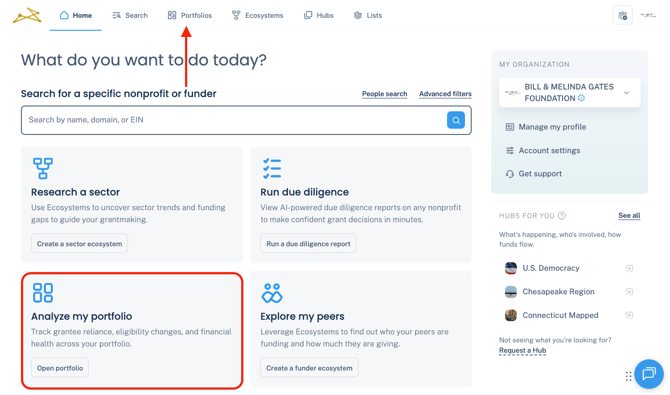
Navigate to the Portfolios section of the platform. You can access it by clicking into the Analyze my portfolio section of your homepage, or the Portfolios tab in the top navigation bar.
Step 2: Select your Portfolio
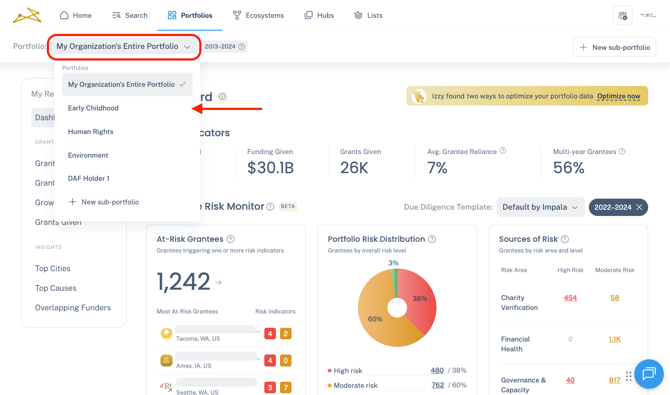
Select the general portfolio or sub-portfolio you would like to review.
To create a new sub-portfolio, see instructions here.
Step 3: Select a Due Diligence Template
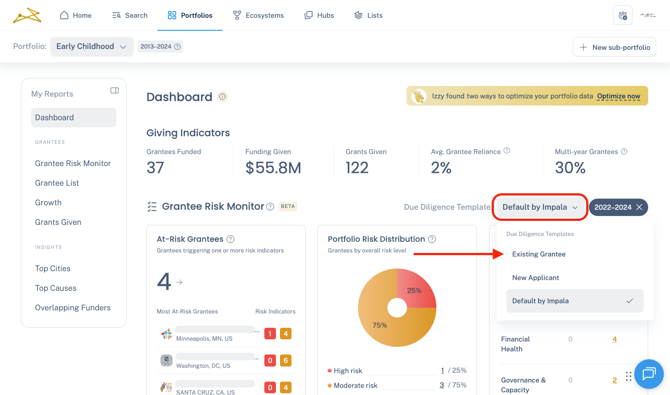
In the upper right corner of the GRM section, use the Due Diligence Template dropdown to select which template should be used to assess risk across your portfolio. You can choose from Impala’s default template or any custom templates your organization has created. Changing the template will update all risk scores and indicators across the dashboard and GRM list view.
To create a new Due Diligence template, see instructions here.
Step 4: Review Portfolio-level Risk
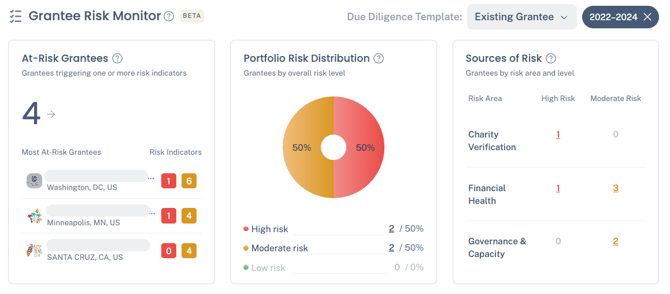
On the Dashboard, the GRM displays three summary panels:
- At-Risk Grantees — the total number of grantees triggering one or more risk indicators, with the highest-risk organizations listed. Click into an org to access their Due Diligence report directly.
- Portfolio Risk Distribution — a breakdown of grantees by overall risk level: High, Moderate, or Low. An organization's risk level aligns with the highest level of risk indicator being flagged.
- Sources of Risk — grantee counts organized by risk area (Charity Verification, Financial Health, and Governance & Capacity) and risk level. Click into one of the summary numbers to be taken to a filtered view of the at-risk orgs.
These panels give you an immediate sense of where risk is concentrated before you dive into the individual grantee list.
This view is automatically filtered to grantees who received grants from you in the most recent 3 year period. You can clear the year filter to see all organizations, or select different years to view.
Step 5: Review Individual Grantee Risk
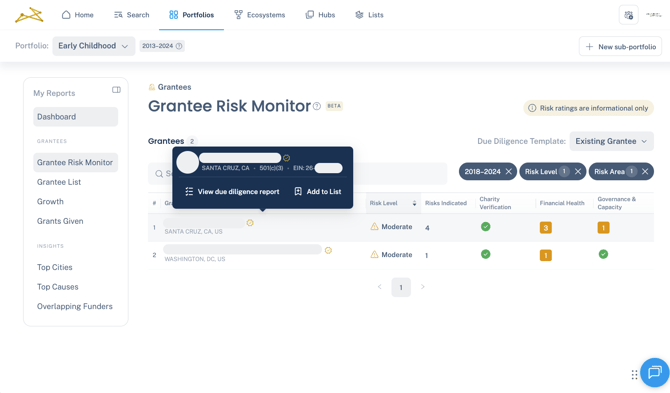
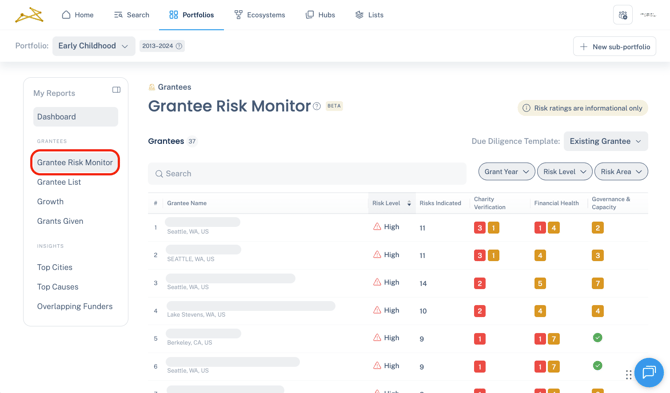
To see the risk of each organization in the portfolio, navigate to the Grantee Risk Monitor tab from the left navigation.
Here, you will find a table listing every organization in the portfolio. Each row displays the grantee’s overall risk level (High, Moderate, or Low), the total number of risks indicated, and individual counts of risk indicators across each risk area: Charity Verification, Financial Health, and Governance & Capacity. An organization's risk level aligns with the highest level of risk indicator being flagged.
Red badges indicate high-risk flags; amber badges indicate moderate-risk flags. A green checkmark in a risk area column indicates no flags were triggered for that area.
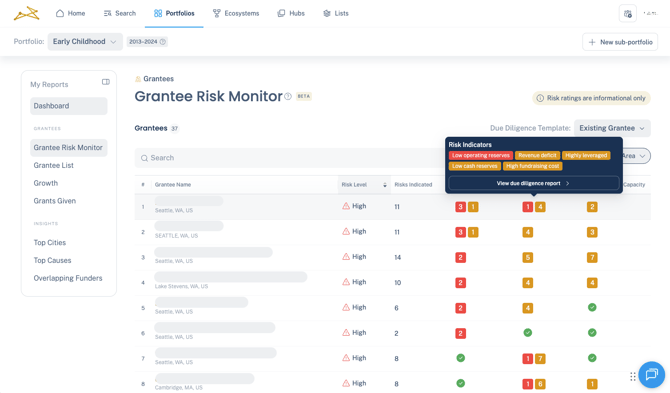
You can hover over the summary counts of each risk section to see which specific indicators are being flagged.
Step 6: Filter and Sort by Risk
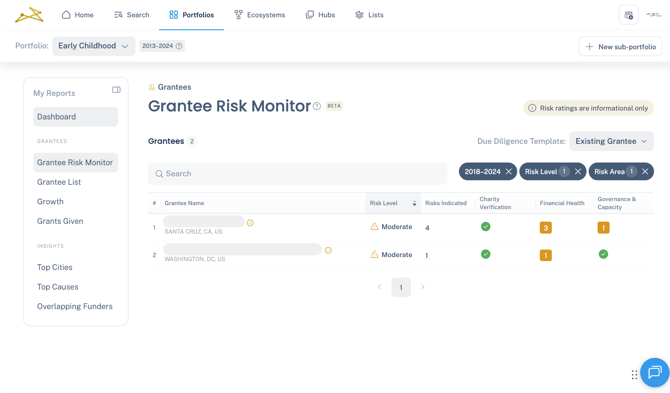
Use the filter controls above the grantee table to narrow results by risk level (High, Moderate, or Low) and by risk area (Charity Verification, Financial Health, or Governance & Capacity). You can also sort the table by overall risk level to quickly surface the organizations that warrant the most immediate attention.
This view is automatically filtered to grantees who received grants from you in the most recent 3 year period. You can clear the year range filter to see all organizations, or select different years to view.
Step 7: Investigate a Grantee in Detail
Hover over any grantee’s name and click View due diligence report to navigate to the Due Diligence section of that organization's profile. There you can review the complete risk report for that organization, including all triggered indicators, underlying data points, and financial details.