![impala long logo dark.png]](https://impala.digital/hs-fs/hubfs/impala%20long%20logo%20dark.png?height=40&name=impala%20long%20logo%20dark.png)
Who can export data from Impala?
-
Premium Subscribers: Most premium subscriptions include some export records, which can be used to download datasets. Premium users can also download any List on their account.
- Ecosystems Research Subscribers: Unlock custom ecosystem PDF reports along with their premium tool access.
- Due Diligence Subscribers: Unlock Due Diligence PDF reports for individual organizations, with customizable templates.
- Free Users: All users can download Profile Overview PDFs. Users with access to a Philanthropy Hub can also download the Hub's Sector Report PDFs.
What can be exported?
Most data tables and lists across the platform feature an export option. Common exports include:
- Organization Lists: Take your curated lists of potential funders or prospective grantees into your CRM or spreadsheets.
- Grants Tables: Download full histories of grants given or received by specific organizations or within an Ecosystem.
- Due Diligence Reports: Generate comprehensive summaries of an organization’s IRS eligibility, financial health, and governance.
- Sector Reports: Export high-level data on ecosystems, including top funders and peer benchmarks.
Export Formats
Depending on your goals, data can be downloaded in two primary formats:
-
CSV (Spreadsheet)
-
Best for data analysis and CRM upload. You can export almost any chart or table to a .csv file by clicking the "Export to CSV" button located at the top right of the data section.
- CSV exports require export records which are usually included with a premium subscription. Learn more about export records here.
-
-
PDF (Reports)
-
Best for presentations and sharing insights with non-Impala users. Impala's PDF sector reports include beautifully branded visualizations of financial and funding trends, organization lists, and key insights.
-
How to Export Data
-
CSV (Premium Users Only)
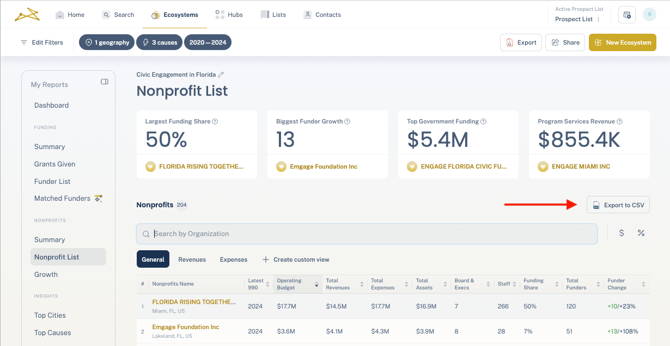
- Datasets (ie. Grants Given, Funder List): Click the "Export to CSV" button located at the top right of the data section you want to download. You will receive the file via an email with a download link.
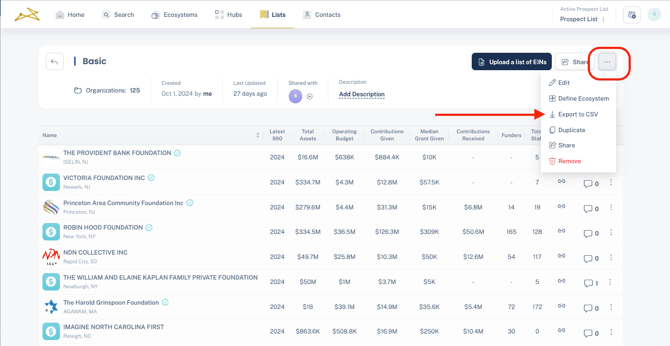
- Lists (ie. Prospect Lists, Sub-Portfolios): From the Lists tab, click into the list you want to download. Click the 3 dots in the upper right corner and select "Export to CSV". You will receive the file via an email with a download link.
- Datasets (ie. Grants Given, Funder List): Click the "Export to CSV" button located at the top right of the data section you want to download. You will receive the file via an email with a download link.
- PDF
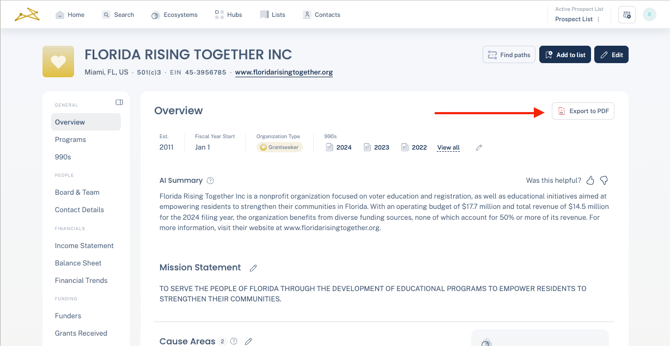
- Profile Overviews: On the Overview tab of any organization profile, click the "Export to PDF" button in the upper right corner. You will receive the file via an email with a download link.
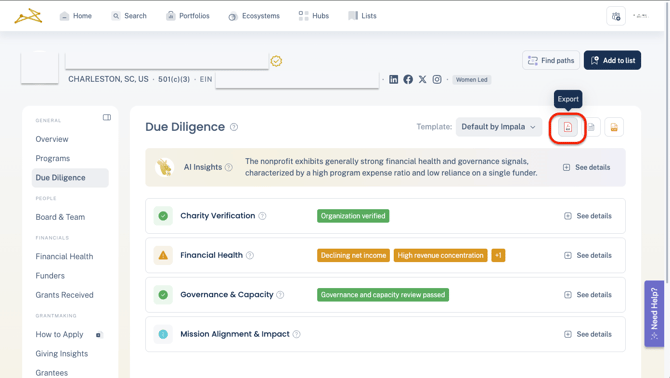
- Due Diligence Report: On the Due Diligence tab of any nonprofit profile, click the "Export" button in the upper right corner. You will receive the file via an email with a download link. Only available for Due Diligence subscribers.
- Ecosystem/Sector Reports:
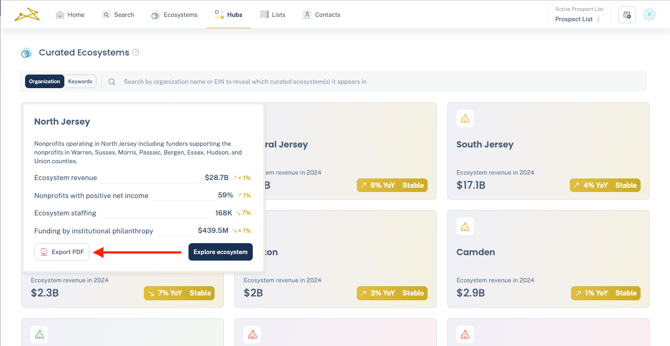
- From a Hub: Click the "Export PDF" button on the ecosystem you want to download. You will receive the file via an email with a download link.
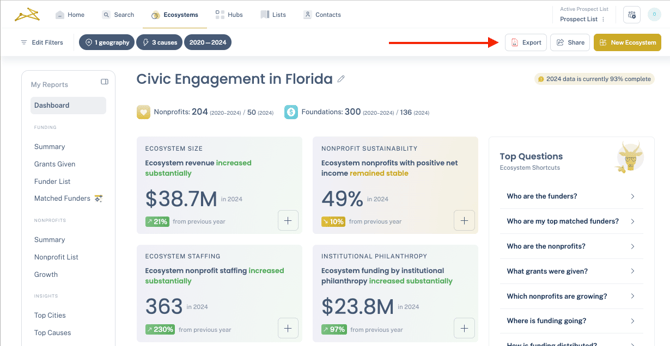
- From a custom ecosystem: Once you have define your custom ecosystem, click the "Export" button in the upper right. You will receive the file via an email with a download link. Only available for Ecosystems Research subscribers.
- From a Hub: Click the "Export PDF" button on the ecosystem you want to download. You will receive the file via an email with a download link.
- Profile Overviews: On the Overview tab of any organization profile, click the "Export to PDF" button in the upper right corner. You will receive the file via an email with a download link.